


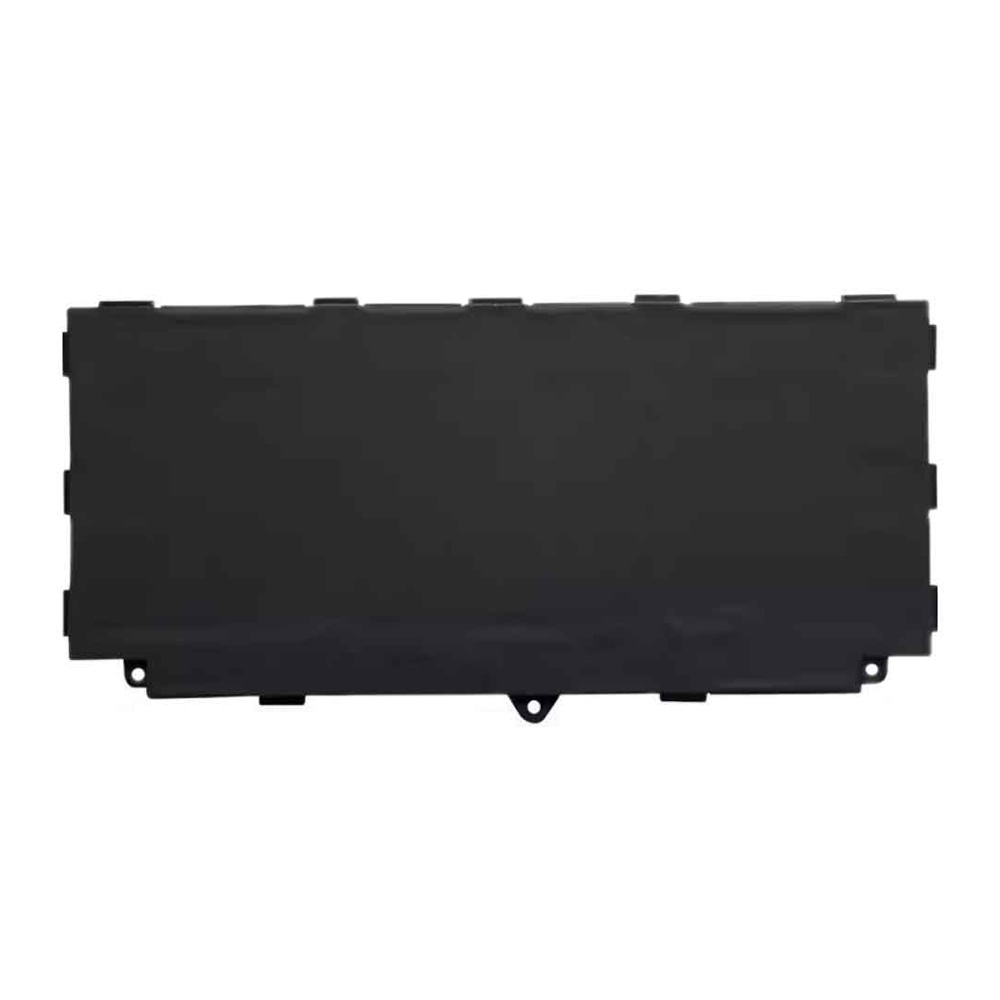
Do You Really Know How to Use Your Laptop Battery?
A friend asked me last week: “My MacBook says ‘Service Recommended’—do I need to replace it immediately? And if so, original or third-party?” This is a question almost everyone faces after using a laptop for two years.
Batteries are one of those things you don’t think about much—until they start causing problems. Today, I’ll walk you through everything you need to know about laptop batteries: how they work, how to maintain them, and when and how to replace them. By the end, you’ll know exactly what to do with yours.
How Lithium-Ion Batteries Work: Why They Hate Extreme Temperatures
Modern laptops use lithium-ion batteries. In simple terms, they work by moving lithium ions between two electrodes.
When charging, ions travel from the positive electrode to the negative one and store there. When discharging, they move back to the positive electrode, releasing energy along the way. This process is normally smooth, but temperature throws a wrench in it.
In cold weather, ions slow down—your battery’s available power drops, and your laptop might shut down even though there’s still charge left. It’s not broken; it’s just physics.
In high heat, the internal materials degrade faster, permanently reducing your battery’s capacity over time.
That’s why your laptop battery dies so fast when you’re working outdoors in winter—and why leaving it in a hot car is a terrible idea.
Reading Battery Specs: Wh vs. mAh—Which Matters More?
Look at any laptop battery, and you’ll see numbers: mAh, Wh, voltage. Most people fixate on mAh, but that’s a mistake.
mAh (milliamp-hours) measures charge, but it ignores voltage. Wh (watt-hours) measures actual energy—and that’s what you should care about.
Here’s an example:
-
Battery A: 3.7V, 5000mAh = 18.5Wh
-
Battery B: 7.4V, 2500mAh = also 18.5Wh
If you only looked at mAh, you’d think Battery A has double the capacity. In reality, they store exactly the same energy.
When comparing batteries, always check Wh first. That’s the real measure of how much power is actually in there.
How to Check Your Battery Health: Two Commands Is All It Takes
Windows users:
-
Press Win+X and select “Windows PowerShell (Admin)”
-
Type this command and hit Enter:
powercfg /batteryreport
-
The system generates an HTML file with everything: design capacity, current full charge capacity, cycle count. Divide current by design capacity—that’s your battery health percentage.
Mac users:
Hold Option, click the Apple icon → System Information → Power. You’ll see cycle count and condition right there.
Generally, when health drops below 80%, it’s time to consider replacement—but context matters, which we’ll cover next.
Five Signs It’s Time to Replace Your Battery
-
Swelling: Your trackpad won’t click properly, or the laptop case won’t sit flat. This is dangerous—replace immediately.
-
Dead Runtime: A full charge barely gets you through an hour. You’re tethered to an outlet everywhere you go.
-
Sudden Shutdowns: The battery shows 30%, then the screen goes black. The battery can no longer deliver consistent power.
-
Won’t Charge: Plugged in, but the percentage keeps dropping.
-
System Warnings: Windows says “Consider replacing your battery.” Mac says “Service Recommended.”
Hit any of these? Don’t wait.
OEM vs. Third-Party: Which One Should You Buy?
OEM (Original Equipment Manufacturer) batteries: Perfect compatibility, guaranteed quality—but expensive. Apple charges $150+ for a MacBook battery replacement. That’s half the price of a used laptop.
Third-party batteries: Much cheaper—usually $40–$70. And here’s the thing: good third-party batteries today use the same Japanese/Korean cells as OEMs, with proper protection circuits. The difference? You’re not paying for the brand logo.
The trick is choosing the right brand. Avoid the $15 no-name specials—those often skip safety features and use recycled cells. A reputable third-party battery from a seller with real reviews? Totally fine.
My take: If budget isn’t an issue and you want zero hassle, go OEM. If you’re okay spending 10 minutes reading reviews, a good third-party battery gives you 90% of the performance at half the price.
DIY Replacement or Professional Repair?
Old laptops with removable batteries: Three screws, slide out, slide in. Anyone can do this.
Modern laptops with built-in batteries: Different story. These are glued in—literally. On a MacBook or Dell XPS, replacing the battery means carefully prying it out without puncturing it, then cleaning off old adhesive before sticking the new one in.
Doing it yourself saves you $50–$100 in labor. But you’ll spend an hour working slowly, watching YouTube tutorials, and praying you don’t snap a ribbon cable.
For first-timers: If you’re patient and handy, DIY is doable—just buy a kit with tools and a video guide. If the thought of prying near your motherboard makes you nervous, pay a repair shop. Peace of mind is worth something.
How to Dispose of Old Batteries Properly
Please—do not throw lithium-ion batteries in the trash. They can catch fire in landfills. It happens more often than you’d think.
-
Manufacturer take-back programs: Apple, Dell, Lenovo all have them.
-
Electronics retailers: Best Buy, Staples, many local shops accept batteries.
-
Municipal hazardous waste collection: Check your city’s website.
-
If you bought from us: Send it back, and we’ll recycle it properly.
A Few Final Thoughts
A laptop battery is a consumable. Like tires on a car, it wears out. Two to three years of regular use, and capacity drops—that’s normal.
A little care goes a long way: don’t regularly drain it to zero, keep it out of hot cars, and use it. But when it’s truly done? Replacing it is just spending a bit of money to give your laptop another few years of life. Do it right, and it’ll feel like new again.