


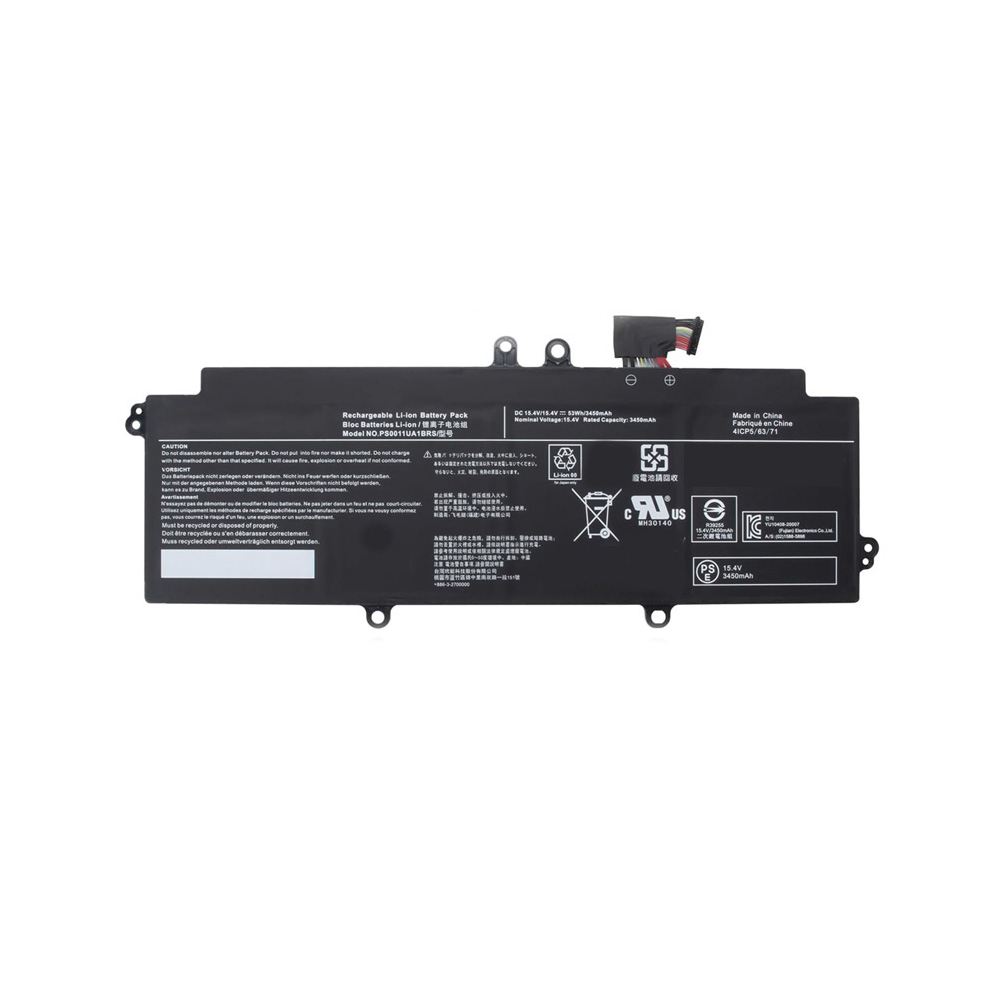
If your Dell laptop consistently stops charging at 80% when plugged in, this is not a malfunction. It’s an intelligent battery conservation feature designed by Dell to extend your battery’s overall lifespan during prolonged, stationary use. Here’s a complete guide to understanding and managing this setting.
Understanding Dell’s “Battery Conservation Mode”
1. Why It Exists
Lithium-ion batteries degrade fastest when kept at 100% charge under high voltage for extended periods. Dell’s algorithm detects when your laptop is primarily used on AC power (e.g., as a desktop replacement) and automatically caps the maximum charge at around 80%. This keeps the battery in a moderate, healthier voltage range, significantly slowing chemical aging.
2. How to Confirm It’s Active
-
Plug in your charger.
-
Check the battery icon in your system tray. If it shows “Plugged in” and the charge level is stuck precisely between 75% and 85% (typically 80%) for a long time, conservation mode is ON.
-
Your Dell Power Manager software will indicate a setting like “Primarily AC Use” or “Custom.”
How to Disable/Manage This Feature (Charge to 100%)
You can change this setting anytime based on your needs. Here are the two official methods.
Method 1: Using Dell Power Manager (Recommended & Easiest)
This is the standard method for most modern Dell laptops running Windows.
-
In the Windows search bar, find and open the “Dell Power Manager” application.
-
Select “Battery Settings” or “Charge Settings” from the left menu.
-
You will see four profile options:
-
“Primarily AC Use”: The conservation mode (caps at ~80%).
-
“Standard”: Charges to 100%, then runs on adapter power.
-
“Adaptive”: Lets Dell’s AI learn your usage pattern to optimize charging.
-
“Custom”: Manually set start/stop charge thresholds (e.g., start below 50%, stop above 90%).
-
-
To get a full charge, select “Standard” or “Custom” (set stop threshold to 100%). The change takes effect immediately.
How to Disable/Manage This Feature (Charge to 100%)
You can change this setting anytime based on your needs. Here are the two official methods.
Method 1: Using Dell Power Manager (Recommended & Easiest)
This is the standard method for most modern Dell laptops running Windows.
-
In the Windows search bar, find and open the “Dell Power Manager” application.
-
Select “Battery Settings” or “Charge Settings” from the left menu.
-
You will see four profile options:
-
“Primarily AC Use”: The conservation mode (caps at ~80%).
-
“Standard”: Charges to 100%, then runs on adapter power.
-
“Adaptive”: Lets Dell’s AI learn your usage pattern to optimize charging.
-
“Custom”: Manually set start/stop charge thresholds (e.g., start below 50%, stop above 90%).
-
-
To get a full charge, select “Standard” or “Custom” (set stop threshold to 100%). The change takes effect immediately.
Method 2: Via BIOS/UEFI Settings (Universal Method)
Use this if Dell Power Manager is not installed or not working.
-
Restart your laptop. As the Dell logo appears, repeatedly press the F2 key to enter BIOS Setup.
-
Using the arrow keys, navigate to “Power Management” or “Battery Configuration.”
-
Look for an option called “Primary AC Use,” “Battery Lifespan Extender,” or “Custom Charge Threshold.”
-
Change its setting from “Enabled” to “Disabled.”
-
Press F10 to Save and Exit. Your laptop will restart.
Key Recommendations & Warnings
-
Who Should Keep It ON? If you use your laptop stationarily on AC power for more than a week, leave this mode enabled. It’s the single best practice to preserve long-term battery health.
-
Who Should Turn It OFF? If you need maximum battery life for mobility, switch to “Standard” mode before unplugging.
-
Reset Tip: After changing settings, if the charge level doesn’t budge, try unplugging the adapter, using the battery until it drops below 75%, and then plugging it back in. It should now charge to your new set limit.
Conclusion
Your laptop’s “80% limit” is a sign of smart engineering, not a defect. Mastering this feature allows you to actively manage your battery’s longevity. When your battery eventually ages and requires replacement—whether with a genuine Dell battery or a high-quality, rigorously tested third-party alternative—you’ll be making the change from a position of knowledge.